
DJcity is the leading platform for DJs around the world. Get all the music you need right now.
DJCITY DESKTOP APP HELP
The DJcity Desktop App enables users to remotely batch download tracks instantly from their Crate to their desktop or laptop computer. You can add tracks to your Crate using the DJcity mobile app or website.
INSTALL AND LAUNCH THE DJCITY DESKTOP APP
We recommend installing the DJcity desktop app on the laptop that you DJ with (on the computer where your DVS software is installed).
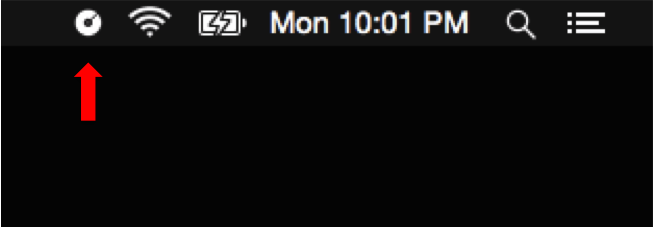
Visit djcity.com/apps using your computer web browser. Follow the installer instructions, then launch the DJcity desktop app. A new icon will appear in your menu bar (macOS) or taskbar (Windows).

LOGIN THEN SELECT A DOWNLOAD FOLDER FOR YOUR TRACKS
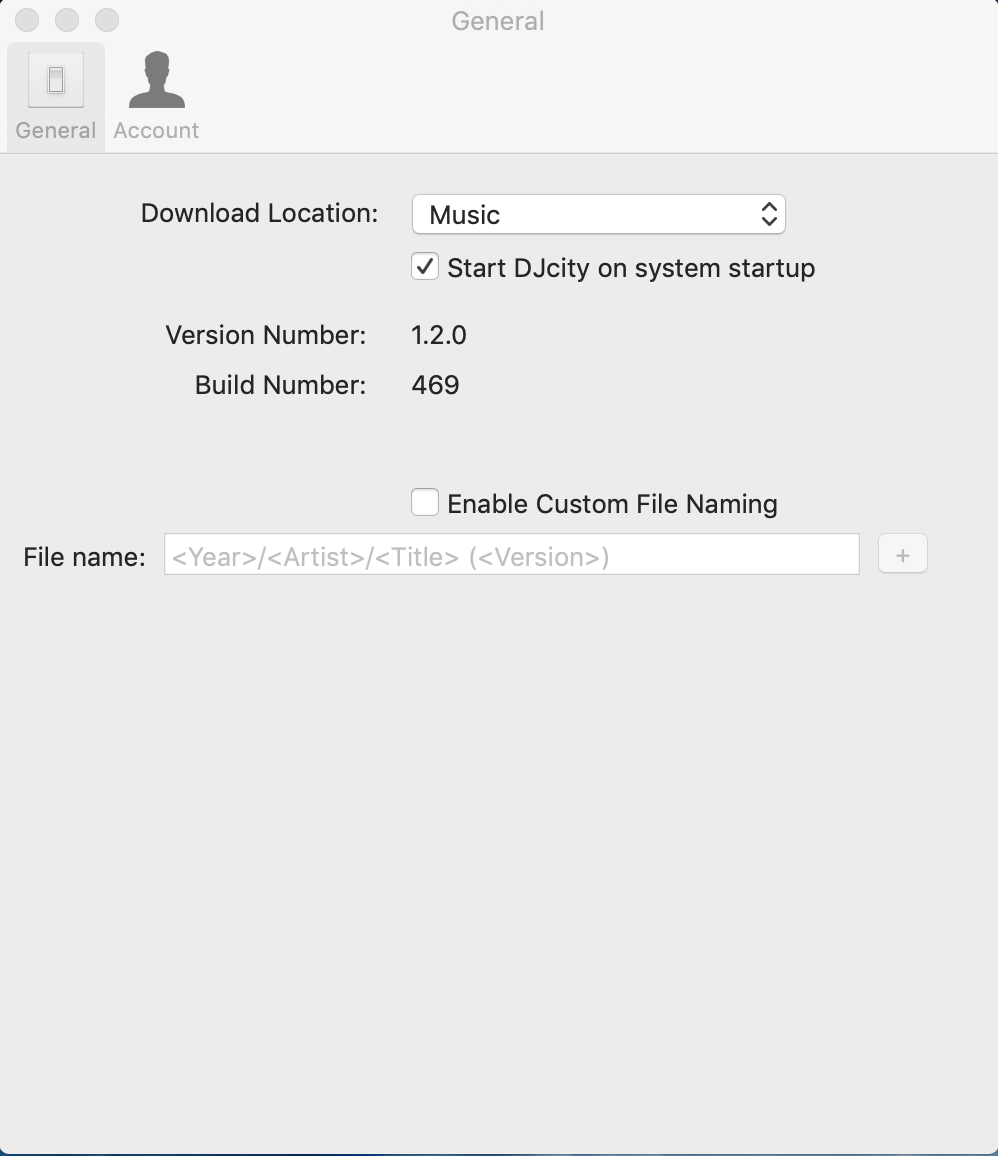
After logging in using your DJcity account credentials, navigate to the Settings menu in the DJcity desktop app to designate a folder for your track downloads.
ADD TRACKS TO YOUR CRATE
Add tracks to your Crate using the DJcity mobile app or desktop website.
From the desktop website or mobile app click the add to crate ( + ) icon to add tracks.
From the desktop website or mobile app click the add to crate ( + ) icon to add tracks.

SEND TRACKS TO THE DOWNLOADER
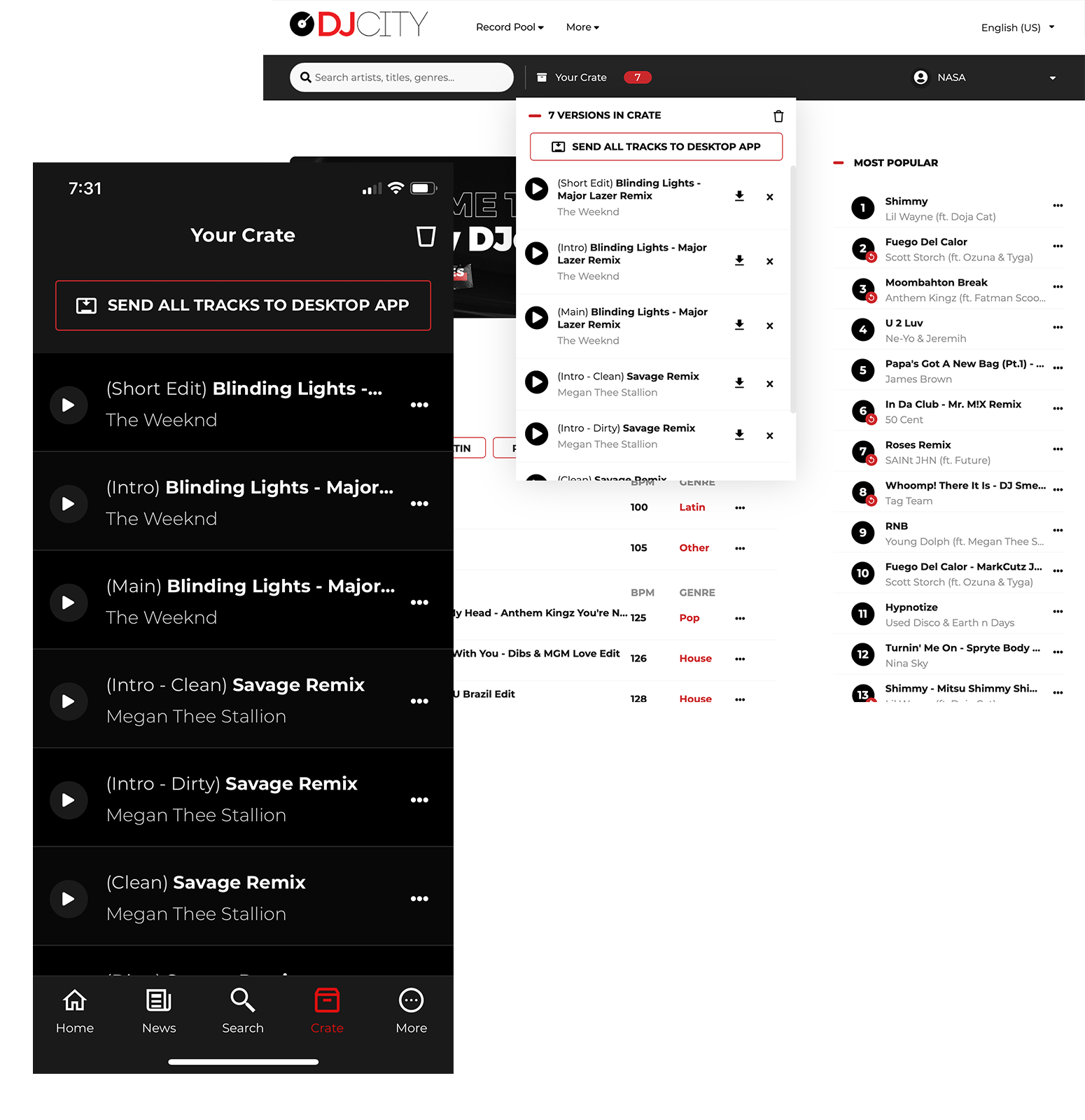
Download all of the tracks in your Crate using the DJcity mobile app or desktop website.
Navigate to the Crate and click the "Send All Tracks to Desktop App" button.
Navigate to the Crate and click the "Send All Tracks to Desktop App" button.
FAQ
DESKTOP APPMOBILE APP
What is the DJcity Desktop App?
The Desktop App is a standalone laptop/desktop application that allows users to remotely batch download tracks in their crate.
Do I need the DJcity Mobile App for the Desktop App to work?
No. But the Desktop and Mobile Apps work great together and we highly recommend using both to maximize your DJcity record pool experience.
Do I have to be a subscriber to use the Desktop App?
Yes. The Desktop App enhances the download process which is available to subscribers of the DJcity record pool.
How do I send the command to initiate downloads?
On the website or Mobile App, go to your crate then click on the "Send all tracks to Desktop App" button.
Where did my downloads go?
You can designate your download folder in the settings menu. To quickly access your download folder, click on the folder icon in the main window.
How do I login to the Desktop App?
Use the same login credentials that you use on the DJcity website.
Do I need to keep my computer and Desktop App running all the time?
No. Once the downloads are initiated, they will start automatically when the Desktop App is launched with an internet connection.
Am I required to use the Desktop App to use the DJcity record pool?
No. The Desktop App enhances the record pool experience, but is not required.
Can I run more than one Desktop App at once?
No. This is not recommended and can lead to unpredictable results.
Can I still download songs the old fashioned way?
Yes. Individual tracks can be downloaded one at a time without the Desktop App. The Desktop App additionally enables remote batch downloads.
Is the Desktop App compatible with my computer?
PLEASE NOTE: WINDOWS 11 IS NOT CURRENTLY SUPPORTED. The Desktop App is a lightweight application that has been tested and verified to work on operating systems as far back as macOS Yosemite (2014) and Windows 7 (2009). Compatibility with earlier operating systems is possible but has not been verified. We also recommend adding the DJcity Desktop App to your whitelist/exception list if you are running anti-virus software to ensure there are no issues with launching the application and downloading files.
Why are my downloads not automatically starting?
Check your internet connection and verify that you are logged in to the Desktop App.
Why does nothing happen on my computer when I launch the Desktop App?
After you launch the Desktop App, a new DJcity icon will appear in your menu bar (macOS) or taskbar (Windows). Click on that icon to access the Desktop App. In Windows, we recommend that your system settings are set to always show the Desktop App icon to ensure it is not inadvertently hidden.
Why doesn't the Desktop App work on my computer?
Ensure you are running the latest version which can be downloaded at djcity.com/apps.
Why aren't my songs automatically downloading after clicking on the button to send all downloads to the Desktop App?
Try clicking on "Manually Refresh Queue" in the Desktop App settings menu. WARNING: unpredictable behavior may occur when more than 250 songs are added to the Crate at one time, or when more than 500 songs are in the Desktop App download queue at one time - it is highly recommended that users comply with these limits to ensure a smooth Desktop App experience.
Why is my button to send all downloads to the Desktop App greyed out in my Crate on the djcity.com website and in the DJcity Mobile App?
Ensure you are logged in to the Desktop App using your DJcity credentials. Also try logging out and logging back in again on the djcity.com website and Mobile App.
Who can I contact if I need more help?
Contact DJcity customer service here.
What is the DJcity Mobile App?
The Mobile App allows users to access the DJcity record pool on their mobile device.
Do I have to be a subscriber to use the Mobile App?
No. Guests can browse/search the full DJcity record pool catalog, listen to DJcity podcast mixes, and stay informed of the latest industry happenings in the News section. Subscribers have the added ability to preview songs, create preview playlists, add songs to their personal crate, and use the companion Desktop App.
How do I login to the Mobile App?
Use the same login credentials that you use on the DJcity website.
Can I download songs using the Mobile App?
Yes. Install the DJcity Desktop App to enable remote batch downloads from the Mobile App.
Do I need the DJcity Desktop App for the Mobile App to work?
No. But the Desktop and Mobile Apps work great together and we highly recommend using both to maximize your DJcity record pool experience.
Is the Mobile App compatible with my phone?
The Mobile App is available for both iOS and Android, and is compatible with iOS 9 / Android v5 and later.
Am I required to use the Mobile App to use the DJcity record pool?
No. The Mobile App enhances the record pool experience on the go, but is not required.
Who can I contact if I need more help?
Contact DJcity customer service here.